
Working from the kitchen table or a spare room can leave you wondering how to sit, place your screen, and plan breaks comfortably. This guide to home ergonomics basics walks through chair height, neutral posture, screen position, keyboard and mouse setup, lighting, and simple movement breaks.
Why Home Ergonomics Basics Matter for Everyday Comfort
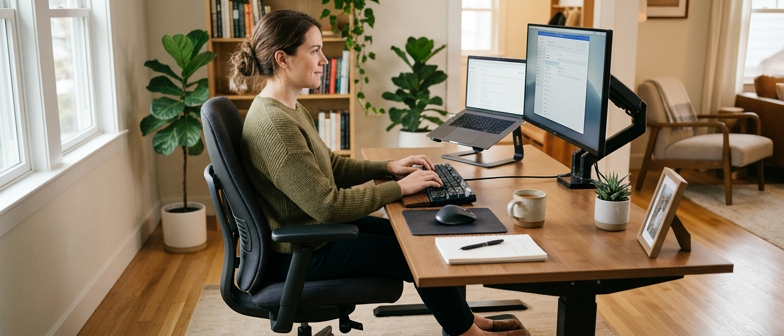
Home Ergonomics Basics focus on shaping your daily environment so your body works with less awkward posture and strain. Even simple choices, like how you sit at a kitchen table with a laptop, can change how tired or tense you feel by the end of the day. A more neutral sitting posture, where your ears, shoulders, and hips line up comfortably, helps your muscles and joints share the workload instead of overloading one area. These ideas are not about perfection or medical treatment; they are practical habits that support everyday comfort while you read, type, or join video calls at home.
Small adjustments often make the biggest difference. Planning brief movement breaks, such as standing up, walking across the room, or gently stretching your hands and shoulders, can refresh your focus and reduce stiffness from staying in one position too long. Over time, combining regular movement with basic ergonomic awareness turns routine tasks into less demanding experiences, whether you are working, studying, or managing household responsibilities. This chapter offers general information to help you experiment with your home setup, but it cannot replace individualized medical care. If you have persistent symptoms, urgent concerns, or personal questions about your health, reach out to a qualified healthcare professional.
Setting Up Your Chair for Neutral Sitting Posture
Home ergonomics basics start with how you sit, and getting chair height adjustment right makes neutral sitting posture much easier. Aim for your feet flat on the floor or a stable footrest, with knees around the level of or slightly below your hips and thighs supported without pressure behind the knees. Sit back fully in the chair, let your shoulders relax, and check that you can place your feet down without reaching or tiptoeing. Small changes in seat height can quickly change how balanced and upright you feel. If the chair height cannot be changed, adjust what is under your feet or slightly alter your desk position so your legs and hips can rest without strain.
After setting the height, adjust the back support so your spine can follow its natural curve. Neutral sitting posture means your lower back is gently supported, your mid-back is not collapsing, and your shoulders stay relaxed instead of rounded forward. Sit with your hips touching the backrest to help maintain this alignment while you work at home. If the backrest does not match your shape, a small cushion or rolled towel at the lower back can give steadier support. These home ergonomics basics focus on everyday comfort and healthy sitting habits, not medical diagnosis. If you notice persistent pain, numbness, or other ongoing symptoms while seated, contact a qualified healthcare professional for advice that fits your situation.
| Checkpoint | What to Look For | Comfort Level | Suggested Adjustment |
|---|---|---|---|
| Feet and leg position | Feet flat, knees near hip level | Comfortable | Keep current height and foot support |
| Seat height and depth | Thighs supported, no pressure at knees | Needs review | Raise or lower seat, adjust footrest if available |
| Hip and back contact | Hips touching backrest, gentle lower back curve | Comfortable | Maintain backrest angle and cushion setup |
| Shoulder and neck alignment | Relaxed shoulders, ears roughly over shoulders | Needs review | Slide closer to desk, avoid reaching forward |
| Symptom awareness | No persistent pain or numbness | Needs review | If ongoing symptoms, consult a healthcare professional |
Fine-Tuning Chair Height and Back Support
For a neutral sitting posture at home, adjust chair height so your feet rest flat on the floor or a stable footrest, with ankles and knees near right angles and thighs roughly parallel to the ground. Keep your hips slightly higher than or level with your knees and set the seat depth so most of your thighs are supported while leaving a small gap between the seat front and the back of your knees.
After height and depth feel right, fine-tune back support to follow the natural curve of your lower spine. Sit fully back, bring your hips to the backrest, and set the angle so your torso is upright or slightly reclined, letting your shoulders relax instead of reaching forward. If the chair lacks lumbar support, use a small cushion or rolled towel, and seek professional advice if sitting causes ongoing pain or numbness.
Positioning Screens, Keyboards, and Mice
Screen placement is a core part of home ergonomics basics because it shapes how your upper body organizes itself while you work. Keep your main monitor directly in front of you to avoid neck and trunk twisting. Many people are comfortable when the top of the screen sits at or just below eye level and the display is about an arm’s length away, which helps prevent leaning or squinting. A slight backward tilt, along with adjusted brightness and contrast, can reduce glare and visual strain, especially when room lighting does not shine directly into your eyes. If you use a laptop often, raise it on a stand and add an external keyboard and mouse so the screen meets your natural viewing height instead of encouraging a bent neck. These ideas offer a practical screen position guide for everyday use; if you notice ongoing eye discomfort or other persistent symptoms, discuss them with a qualified eye care or health professional rather than relying only on layout changes at home.
Your keyboard and mouse setup should let your shoulders stay relaxed and your elbows rest comfortably by your sides, supporting a neutral sitting posture you can sustain. Keep the keyboard close enough to avoid reaching and at a height that keeps your wrists straight rather than sharply bent. Place the mouse on the same surface, close to the keyboard, so you move your forearm instead of only your fingers, and use a grip that feels natural instead of tight. Notice how your hands and forearms feel and make small adjustments to the desk, chair, or devices when something feels off. No single keyboard and mouse arrangement works for everyone, and comfort changes over time, so staying flexible and planning short movement breaks to stand, stretch gently, or rest your eyes away from the screen is often more valuable than chasing a perfect setup. This information supports healthier keyboard and mouse positioning but does not replace personalized medical advice; seek professional guidance if you have ongoing pain, numbness, or other symptoms while working at home.
Practical Screen Position Guide for Home Workstations
For basic home ergonomics, place your monitor so the top of the screen sits at or slightly below eye level while you maintain a neutral sitting posture with your back supported and shoulders relaxed. Use roughly arm’s length as a starting viewing distance, then move the screen until you can read comfortably without squinting or leaning in. Tilt the screen slightly back to avoid craning your neck, and pair this setup with lighting suited to home work, such as a desk lamp that limits glare and avoiding strong light directly behind or in front of the monitor. These guidelines are general suggestions; ongoing eye strain, headaches, or other persistent symptoms should be discussed with a qualified healthcare professional.
Lighting and Eye-Friendly Habits at Home
Thoughtful lighting is a core part of home ergonomics basics because it affects how comfortably you view screens. For home work, use soft ambient light with focused task lighting so your eyes are not straining or fighting glare. Place lamps and ceiling lights so they brighten the desk without reflecting directly off the monitor or glossy surfaces. With natural light, keep windows to the side of your main screen rather than behind or in front of it to reduce harsh contrast. As a simple screen position guide, keep the monitor about arm’s length away, with the top near eye level and slightly tilted back, then match screen brightness to the room so it is not much brighter or darker than its surroundings.
Eye-friendly habits matter as much as lighting when you spend long hours with digital devices at home. Take short movement breaks and look away from the screen regularly so your eyes and body can reset. Adjust text size, contrast, and color so you can read without squinting or leaning forward, and keep your primary work screen directly in front of you to limit repeated head turning. If you notice ongoing eye discomfort, frequent headaches, or other persistent symptoms during home work, general guidance on lighting for home work is not a substitute for care from an eye care or other healthcare professional, and urgent or personal medical questions should be discussed with a licensed clinician.
Q&A
Why do home ergonomics basics matter for everyday comfort?
They help you keep a more neutral sitting posture so muscles and joints share the load instead of one area working too hard. Better layout habits make reading, typing, and calls more comfortable. This is general information only; persistent or worrying symptoms should be discussed with a healthcare professional.
How can I adjust chair height for a neutral sitting posture?
Aim for feet flat on the floor or a footrest, ankles and knees near right angles, and hips level with or slightly above the knees. Sit back so your back is supported, leave a small gap behind the knees, and keep shoulders relaxed. If the chair will not adjust, change foot support or desk height so your legs rest without strain.
What is a simple guide for home screen position?
Place the monitor directly in front of you, about arm’s length away, with the top at or just below eye level and slightly tilted back. Match brightness and contrast to the room and reduce glare from lights or windows. Ongoing eye pain or headaches should be checked by an eye care or other health professional.
How should I set up keyboard and mouse at home?
Keep the keyboard low enough that shoulders stay relaxed and elbows stay near your sides, with wrists in a straight line instead of bent. Put the mouse close to the keyboard, using light, small movements. These general tips do not replace advice from a clinician who knows your situation.
What lighting and movement breaks help eye comfort during home work?
Use soft room lighting plus a desk lamp to cut glare, and place windows to the side of the screen when possible. Match screen brightness to the room, look at distant points regularly, and plan short movement breaks such as standing, brief walking, or light stretching. If discomfort persists or worsens suddenly, seek care from a qualified professional.